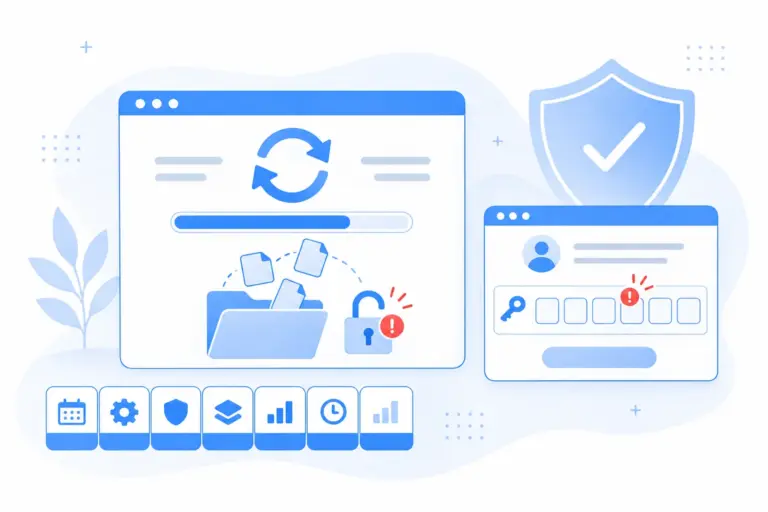

Ask how WordPress sites actually get broken into and the answer is rarely exotic: it is a password that was weak, reused, shared in a chat thread, or phished. So the interesting question is not “how do I make people choose better passwords” — you mostly cannot — but which of the alternatives that now exist should carry your login. Two-factor codes, passkeys with Face ID or a fingerprint, magic links, social login: they get lumped together as “passwordless” or “extra security”, yet they solve different problems, cost different amounts of user patience, and fail in different ways when a phone goes missing. This is a guide to the methods, not the plugins: what each one protects against, what it costs in friction, how you recover when the device is gone, and which kind of site each one actually fits.
The one question to ask before choosing: who logs in, and how often?
Login security advice usually pretends every site is the same. It is not. A blog where one person logs in daily has a completely different threat and friction profile from a WooCommerce store where ten thousand customers log in twice a year, or a membership site where the login is the product. The two variables that decide almost everything: how privileged the accounts are (an admin account is worth attacking; a customer account mostly is not), and how often each person logs in (daily users amortize any setup cost; yearly users forget everything, including which method they enrolled in). Keep those two in mind — the recommendations at the end are built on them.
TOTP two-factor: the workhorse
What it is: the user logs in with their password as usual, then types a six-digit code from an authenticator app (Google Authenticator, Authy, 1Password, Bitwarden — anything standard). The code rotates every 30 seconds and is generated on the device, so there is nothing to intercept in an inbox.
What it protects against: the single most common compromise there is — a stolen or reused password. Credentials leaked from some other service, an old spreadsheet of logins, a guessed password: none of them are enough on their own anymore. That is why TOTP remains the baseline recommendation for every account that can install plugins, and why we covered when TOTP is the right fit in its own article.
What it costs: a one-time setup (scan a QR code from the profile page) and five seconds per login. Daily users stop noticing it within a week. Its real weakness is not friction but phishing sophistication: a convincing fake login page can ask for the code too and relay it in real time. TOTP raises the bar dramatically; it does not make phishing impossible. A softer variant — email OTP, where the code arrives in the user’s inbox — trades some of that security for easier onboarding, and inherits the security of the mailbox itself.
Best for: administrators and editors, full stop. Any account with real privileges should have a second factor, whatever else you add on top.
Passkeys and biometric login: the one that actually ends phishing
What it is: a cryptographic credential stored on the user’s device, unlocked with whatever unlocks the device — fingerprint, Face ID, Windows Hello, or the device PIN. It is built on the WebAuthn standard, which every current browser and OS supports. The user taps “Login with passkey”, confirms on the device, and is in — no password typed, often no password existing in the flow at all.
What it protects against: phishing, structurally. A passkey is bound to your site’s domain; a lookalike phishing page cannot request it, and there is no code the user can be tricked into retyping. It also eliminates weak and reused passwords for the accounts that use it, and — a quieter benefit — it eliminates password reset requests, which for agencies and multi-editor teams is a real cost. We went deeper on this in why biometric login is useful.
What it costs: enrollment. Each user must register a passkey from their profile before they can use one, and the concept is still new to non-technical users (“where does it live? what if I get a new phone?”). The honest answers: it lives on the device or syncs through the platform’s credential manager (iCloud Keychain, Google Password Manager), and you should register more than one — a second device, so losing the first is an inconvenience rather than a lockout. On mobile, passkeys are not just safer but genuinely faster than typing a password into wp-login.php, which is the rare case where the more secure option is also the more convenient one.
Best for: daily users on modern devices — editorial teams, admins, agencies. For thousand-user customer bases it works well as an option next to a fallback, rather than the only door.
Magic links: login by inbox
What it is: the user enters their email address and receives a login link — single-use, short-lived (fifteen minutes is a sensible window), no password involved. Done properly, the response looks identical whether the email exists or not, so the form cannot be used to enumerate accounts.
What it protects against: password sharing and password existence. There is nothing to reuse, nothing to write in a chat message, nothing to phish out of a database dump. Its security equals the security of the user’s mailbox — which is worth saying out loud: for a user with a well-protected mailbox, a magic link is strong; for a user whose email password is “summer2021”, the mailbox is now your login page.
What it costs: a round-trip to the inbox on every login, plus a hard dependency on email delivery — if your site’s mail lands in spam, your login does too (if that is your situation, fix SMTP first). The per-login friction means it suits people who log in occasionally rather than daily. Where it genuinely shines is one specific scenario: giving someone access without creating a shared password — a contractor, a client, a reviewer. That is why it pairs so naturally with temporary accounts that expire on their own.
Best for: infrequent users, contractor and client access, and membership sites whose audience would rather click a link than remember one more password.
Social login: convenience with a landlord
What it is: “Continue with Google” (or Apple, or Facebook). Authentication is delegated to a platform account the user already has and already protects — usually with better security than any password they would have chosen for your site.
What it protects against: weak site-specific passwords and signup abandonment. For customer-facing sites it measurably lowers the barrier to creating an account, and it outsources 2FA to Google’s or Apple’s, which the user probably already has enabled.
What it costs: a dependency and a privacy posture. If the user loses the platform account — or the platform suspends it — they lose your site too, and your support inbox inherits the problem. There is a GDPR conversation to have about what the identity provider learns each time someone signs in. And it is the wrong tool for admin accounts: privileged access to your site should not depend on the state of someone’s Facebook account. Treat it as a customer convenience, not a security measure.
Best for: WooCommerce customers and community members — high-volume, low-privilege accounts where signup friction costs money.
What happens when the phone is lost
This is the section most login guides skip, and it is where real-world setups live or die. Every stronger method concentrates trust in a device or a mailbox, so the recovery story is the security story:
- TOTP: a lost phone means lost codes. The honest preparations are recovery codes stored somewhere safe, or a second admin who can reset the user’s 2FA. Decide which before enabling it site-wide; the worst time to design recovery is while locked out. (An admin with server access can always disable a 2FA plugin as the last resort — which is also a reminder that server access itself is part of your login security.)
- Passkeys: the failure mode is enrolled-on-exactly-one-device. Platform-synced passkeys survive a lost phone via the user’s Apple or Google account; a second registered device makes the whole question boring. Make “register at least two” part of onboarding, not an afterthought.
- Magic links: recovery is whatever the mailbox’s recovery is. Nothing for you to manage — but nothing for you to control either.
- Social login: recovery belongs to the platform entirely. For customers that is usually fine; it is exactly why it is wrong for admins.
The pattern across all four: redundancy beats cleverness. Two factors enrolled, two passkeys registered, one fallback method enabled — any of those turns “I lost my phone” from an incident into a shrug.
Which method fits which site
| Site | Admins & editors | Everyone else | Skip |
|---|---|---|---|
| Solo blog / brochure site | TOTP, or a passkey if you log in from modern devices | — | Social login (nothing to gain) |
| Editorial team (3–15 people) | Passkeys for daily users, TOTP as the enforced baseline | Magic links for occasional contributors | Email OTP for admins (mailbox becomes the weak point) |
| WooCommerce store | TOTP + passkey, no exceptions | Social login and/or magic links for customers | Forcing 2FA on customers (you will pay for it in support) |
| Membership / community site | TOTP + passkey | Magic links as default, passkeys as opt-in | Password-only anything |
| Agency-managed client sites | Passkeys for your team, TOTP enforced for client admins | Temporary accounts + magic links for contractors | Shared admin passwords — the thing this whole list replaces |
Notice that every row combines methods. That is not indecision; it is how authentication actually works now. The password plus TOTP guards the privileged accounts, passkeys make daily logins fast and phishing-proof, magic links handle the people who should never have had a password to share, and social login absorbs the crowd. The mistake is picking one method and forcing it on populations it does not fit.
One note on tooling
Everything above is method-level and applies whatever plugins you use — most dedicated 2FA or passkey plugins implement these flows well. For what it is worth, our own Must-Have Tweaks ships TOTP and email OTP, passkey login, magic links and temporary users as modules of one toolkit, so the combinations in the table above can come from a single place, with unused modules loading nothing. If you arrived here from our Wordfence alternatives piece wondering how to fill the login gap that the firewall-only setups leave open — this is the answer to that question.
Frequently asked questions
Do passkeys replace 2FA?
Functionally, a passkey already is two factors — the device (something you have) and the biometric or PIN that unlocks it (something you are or know). A password-plus-TOTP flow and a passkey flow are both multi-factor; the passkey is simply the phishing-resistant one. Running TOTP as the enforced baseline while daily users adopt passkeys on top is a perfectly sensible transition state, and most sites will live there for a while.
Is a magic link less secure than a password?
It is exactly as secure as the mailbox behind it, which for most users means “more secure than the password they would have picked” — mailboxes tend to be the one account people actually protect. The implementation details matter: single-use tokens, a short expiry, and identical responses for existing and non-existing emails, so the form does not leak which addresses have accounts.
Should I force 2FA on every user?
Force it on every account that can change the site: administrators, editors, shop managers. For low-privilege, high-volume users — customers, subscribers — mandatory 2FA mostly generates support tickets while defending accounts attackers rarely want. Offer stronger methods there; mandate them where the privileges are.
What about hiding the login page or limiting attempts?
Rate-limiting login attempts is worth having and any decent security setup includes it. Hiding wp-login at a custom URL is light obscurity — it quiets log noise but stops nobody who matters. Neither is an authentication method, which is why neither is in this article: they harden the door frame, while the methods above change the lock.
The takeaway
Passwords alone stopped being a defensible default years ago; what replaced them is not one winner but a small toolbox. TOTP is the enforced floor for anyone with privileges. Passkeys are the direction of travel — faster than passwords and structurally immune to the phishing that defeats codes. Magic links quietly solve the access-without-shared-passwords problem that causes so many real-world messes. Social login belongs on the customer side and nowhere near wp-admin. Choose per population, enroll a backup for whatever you choose, and the next lost phone on your team will cost five minutes instead of an afternoon.