

WP Advanced Content Protector 1.0 is out, the first release since 0.4.1 in June 2025. The watermark is now yours: your own text or an image from the Media Library, placed where you want it. The watermarked copies are lossless WebP files, the settings page shows exactly what a copier ends up with, and watermarks now work on servers without Imagick. On top of that, the protection keeps working next to optimizers that delay scripts, and there is a long list of fixes. Here is what changed.
If you are new to it: WPACP protects the text and photos on a WordPress site while regular visitors read and browse as usual. Copied text can be changed on its way to the clipboard, the HTML source can be scrambled, text in a screenshot gets lines and dots that text recognition can’t read, and photos carry an invisible watermark: visitors see the original, while a saved file or a screenshot shows your mark.
What’s new in 1.0 at a glance
- Your own watermark: your text or an image from the Media Library, nine positions, size, opacity and optional lines from corner to corner.
- Lossless WebP copies: apart from the watermark, the copy matches the photo pixel for pixel, transparency included, and it is named after the photo.
- A redesigned settings page with live previews of what a copier gets in every scenario.
- Watermarks without Imagick: when the Imagick extension is missing, GD makes them, with the same look.
- Works with optimizers that delay scripts, and covers photos that are added to the page later.
- A steadier connection and automatic updates: a temporary API error no longer switches the protection off.
- Improvements and fixes in screenshot, copy and source protection.
A settings page that shows what a copier gets
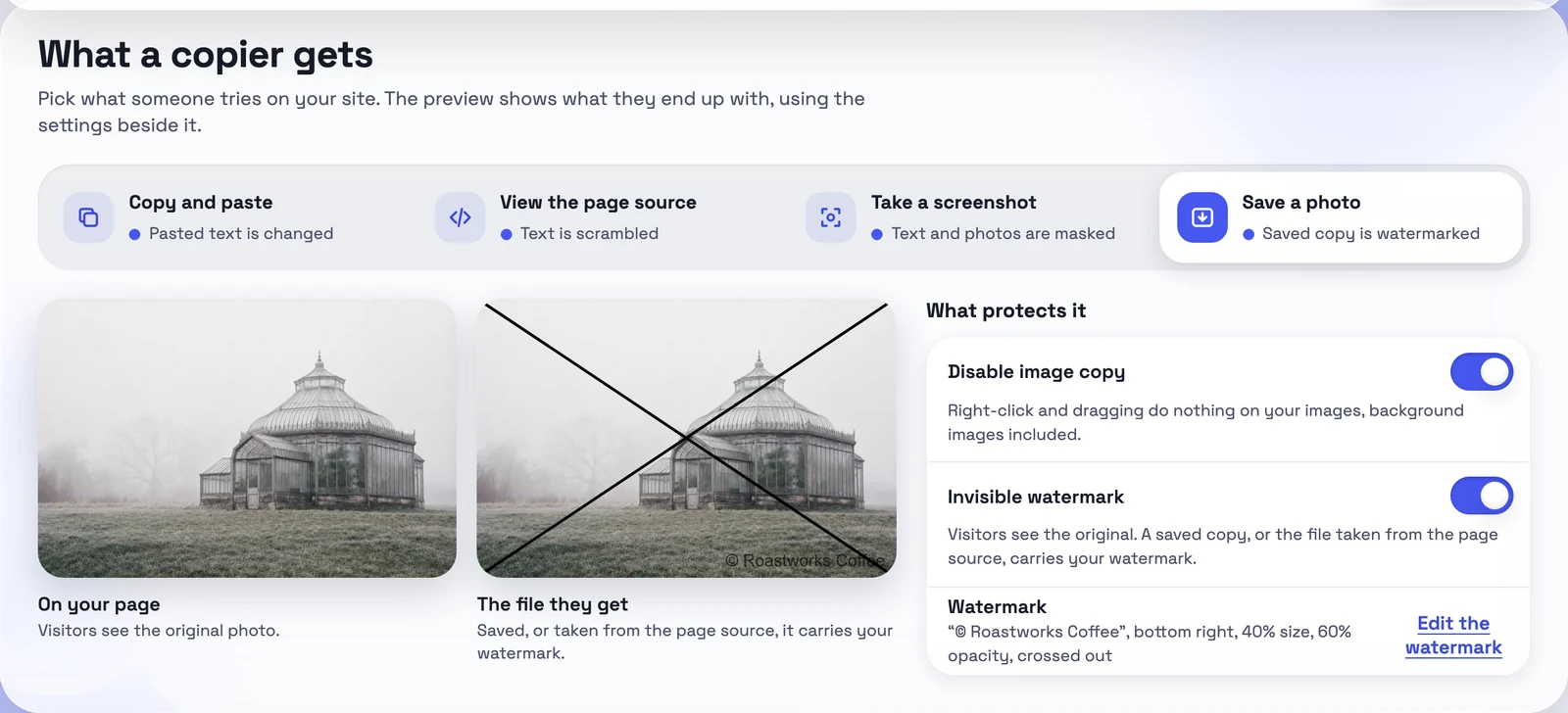
The old settings page was a long list of switches, with a Lorem ipsum sample that only showed the copied text. The new page starts from the other side: what someone tries on your site. Four tabs cover the four cases: Copy and paste, View the page source, Take a screenshot and Save a photo. Each tab shows a live preview of what that person ends up with, and the switches that control it sit right beside the preview. Change a setting, and the preview follows.
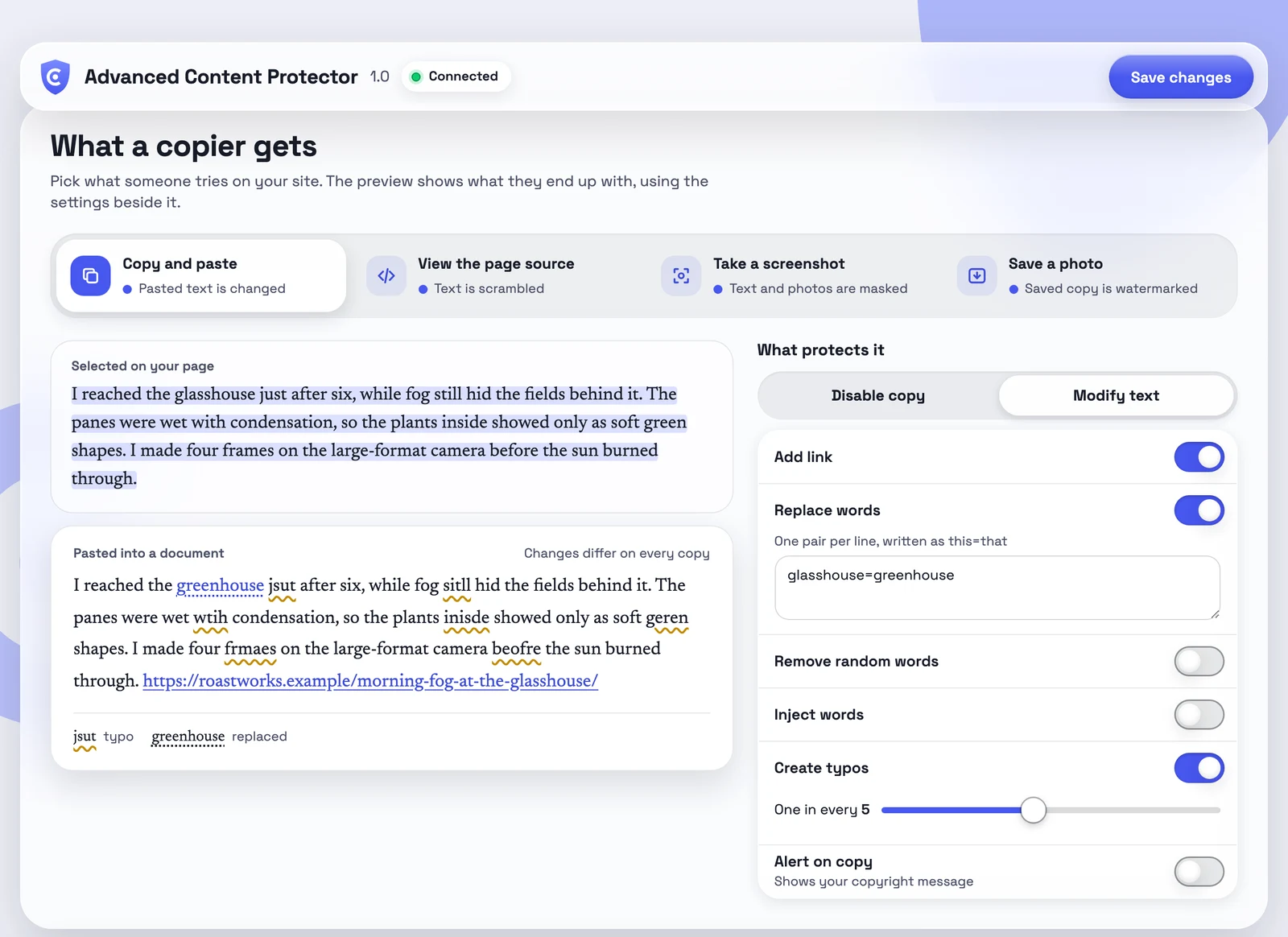
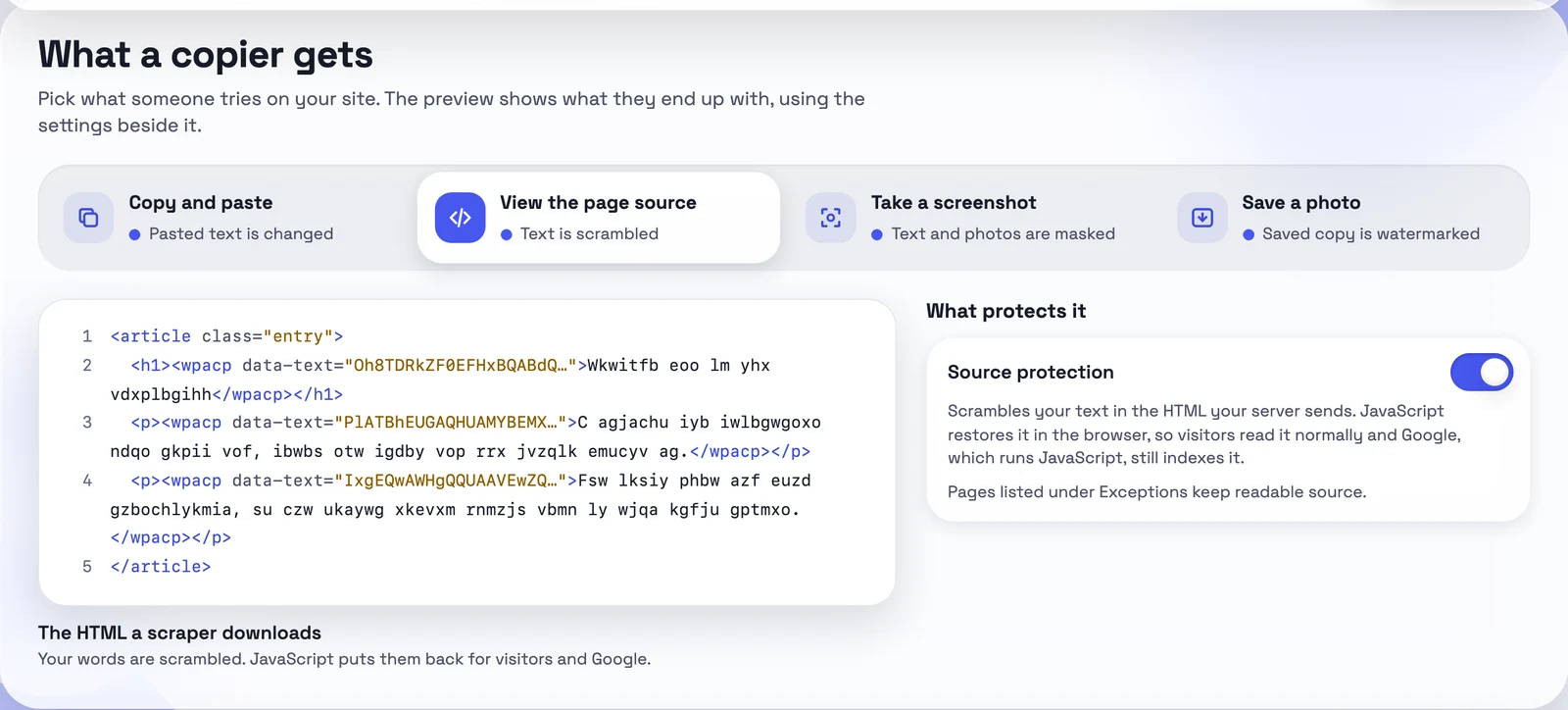
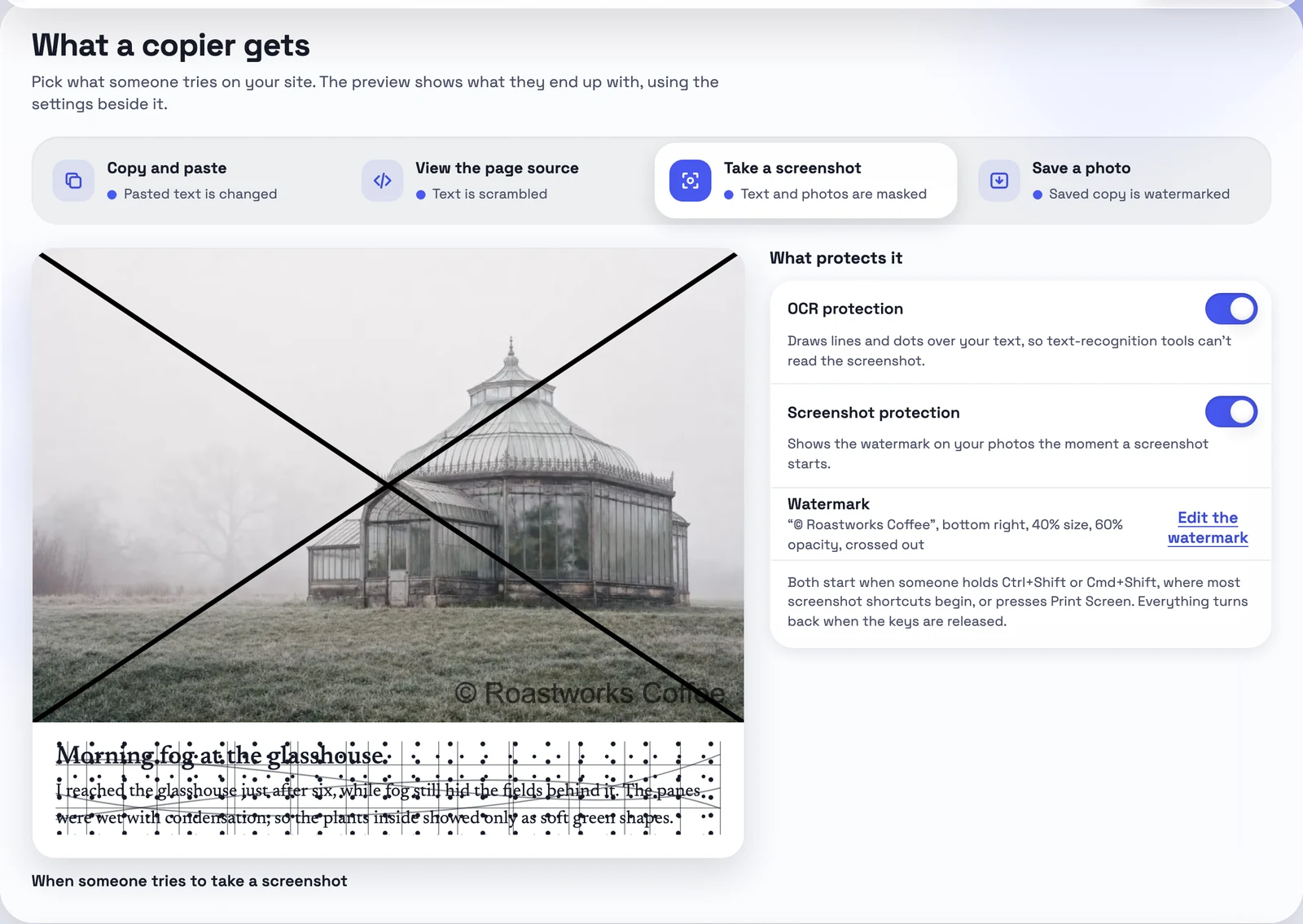
The previews are not mockups. The copy and paste preview runs the same steps as the protection script on a sample post: it removes random words, replaces the words on your list, injects words, adds typos and appends a link back to your page, and it respects the exceptions, such as the minimum word count and your stop words. The page source preview shows the scrambled HTML a scraper downloads, and the screenshot and photo tabs show a sample text and photo the way they end up in a screenshot or a saved file.
The rest of the page got simpler too. The header shows whether the site is connected, and a short message confirms when your changes are saved and when the protection script is updated. If the daily update of the protection script fails, a banner offers Try again. Exceptions now sit in one place: short copies go through unchanged (up to 3 words by default), so do copies that contain one of your stop words, and a copied email address or phone number always does. Below them you list the pages where text protection or image protection is switched off. Notices from other plugins no longer show up on the WPACP page, so they can’t break it anymore.
Your own watermark
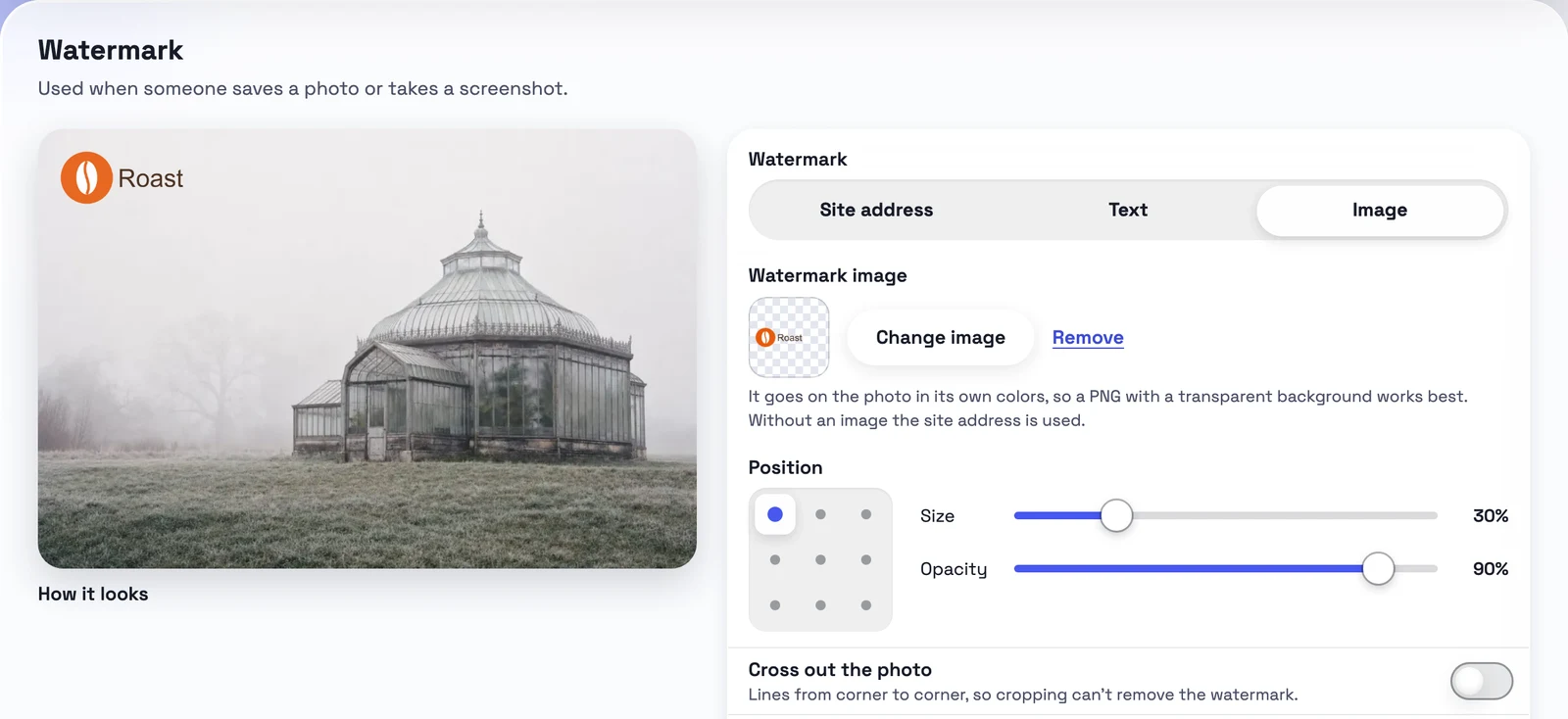
Until now the watermark was fixed: a cross from corner to corner and your site address. In 1.0 you choose. The new Watermark section offers three types: the Site address (the familiar look), your own Text, or an Image from the Media Library, such as your logo. You pick one of nine positions on a three by three grid, set the size and the opacity anywhere from 10 to 100%, and decide whether to cross out the photo with lines from corner to corner, so the mark can’t simply be cropped off.
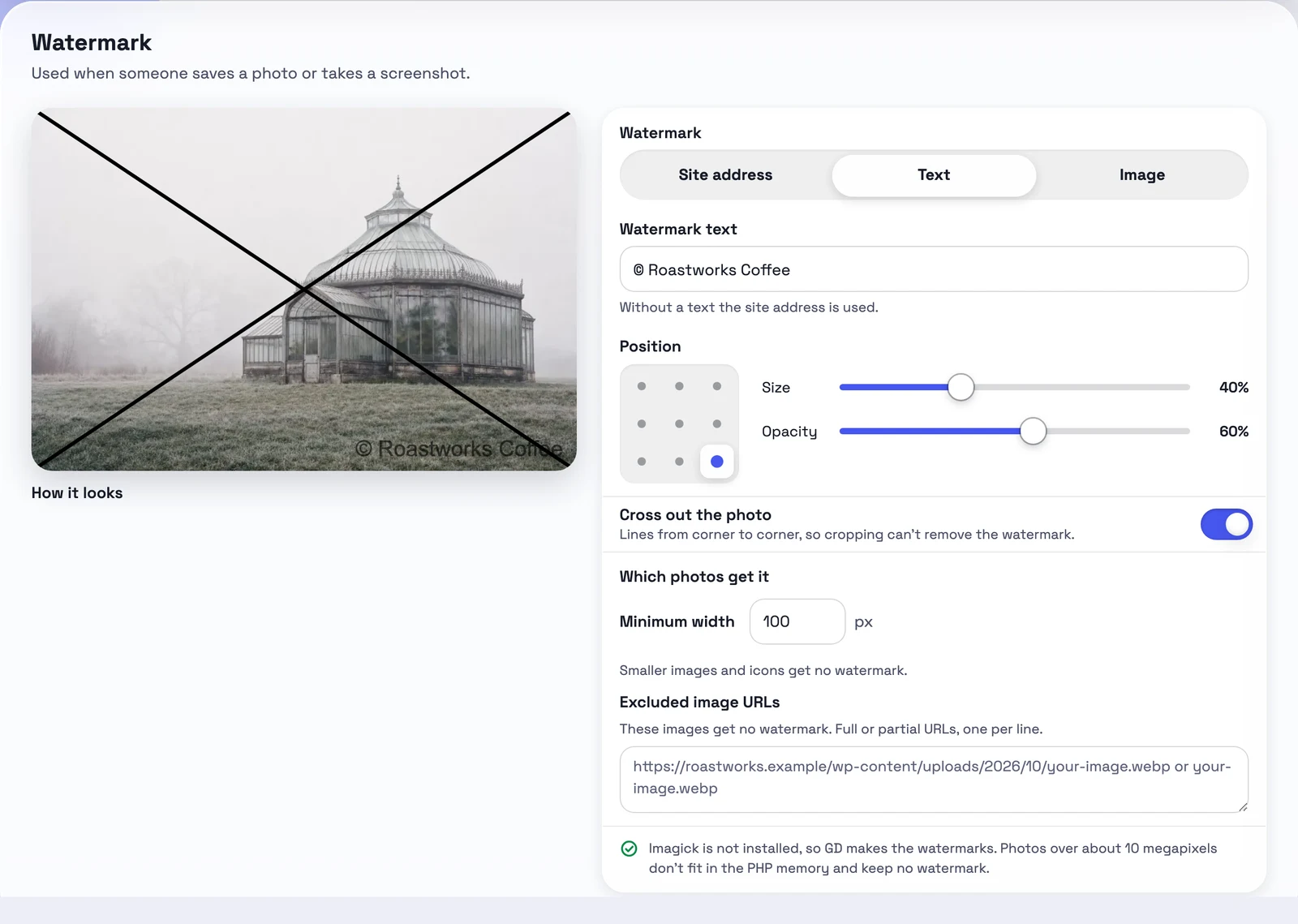
Text and image watermarks behave differently on purpose. A text watermark is cut out of the photo: on a JPEG, which has no transparency, it shows as black, and on a PNG or WebP with transparency it becomes a transparent gap. An image watermark goes onto the photo in its own colors, so a PNG logo with a transparent background works best. The section has its own live preview, so you see the result on a sample photo before you save.
Under Which photos get it you set the minimum width, 100 px by default, so small images and icons are skipped, and you can list image URLs that should never get a watermark.
Why visitors don’t see it
The watermark is right there on the copy. Visitors don’t see it because they never look at the copy. The src of each protected <img> points to the watermarked file, so saving the image, dragging it out of the browser or taking it from the page source all give the copy with your mark. A small script then loads the original and lays it over the image as a cover, which is why visitors see the clean photo.
With screenshot protection on, the cover comes off the moment someone starts a screenshot, so the screenshot shows the watermarked version. With OCR protection on, the text on the page gets lines and dots at the same moment, so text recognition can’t read it from the screenshot. Everything turns back when the keys are released.
This applies to <img> images served from your own domain. Images on a CDN and CSS background images don’t get a watermark. The goal is that the easy ways of taking a photo, the ones almost everyone uses, hand over a marked copy.
Lossless WebP copies, named after the photo
In earlier versions the watermarked copy was saved in the format of the photo and compressed again, so a JPEG became a re-encoded JPEG with a little less quality. In 1.0 the copy is a lossless WebP. Apart from the watermark it matches the photo pixel for pixel, and transparency is kept. Each copy is named after its photo, with the extension joined by a dash: photo.jpg becomes photo-jpg.webp. That also fixes an old problem: photo.jpg and photo.png in the same folder used to share a cover, so the wrong original could appear.
Two limits apply. Photos over 7 megapixels get a copy in their own format, because lossless encoding takes longer the bigger the photo is, and so do photos over 16383 px on a side, the largest a WebP file can be. Developers can change the megapixel limit with the wpacp_lossless_max_megapixels filter. And lossless files are not small: in our test a 147 KB JPEG of 1024×683 px became a 456 KB copy, while a 2.2 MB PNG with transparency became 1.26 MB.
Watermarks without Imagick
Until now the watermark needed the Imagick PHP extension, and on a server without it, switching the watermark on caused an error. WPACP 1.0 uses Imagick when it is there and GD when it is not. The two give the same look: their output differs in at most 2.5% of the pixels. With GD, lossless WebP copies need PHP 8.1 or newer; on older PHP the copy keeps the format of the photo. GD is also slower, about 1 second per watermark on a 1024×683 photo in our test, against 0.3 seconds with Imagick, but each copy is made once and then served as a file. The Watermark section tells you which engine your server uses, and with GD also how large a photo fits in the PHP memory: bigger photos keep no watermark.
Protection that keeps up with optimizers and dynamic pages
Performance plugins such as Swift Performance, WP Rocket and LiteSpeed Cache can delay scripts until the visitor first interacts with the page. Before 1.0, a delayed protection script only handled what appeared after it started, so visitors could end up looking at watermarked photos and scrambled text. Now the script takes care of everything already on the page as soon as it runs, and with Swift Performance the plugin keeps its own script out of the delay. Photos that arrive later, in a slider, through AJAX or with infinite scroll, are protected as well.
A steadier connection and automatic updates
The protection script that runs on your pages comes from the WPACP API. Before, a temporary error there, such as a server error or a timeout, could disconnect the site. Now the site stays connected and keeps the last working script; only a license problem disconnects it. And WPACP now follows the WordPress automatic updates, so if they are on for your plugins, new versions install themselves.
Improvements and fixes
- Fewer false alarms in screenshot protection. When someone holds Ctrl+Shift or Cmd+Shift, presses Print Screen, prints the page or seems to open the developer tools, your text gets lines and dots that text recognition can’t read, and photos show their watermarked version. After a macOS screenshot, keys no longer get stuck, and a browser side panel or zooming no longer counts as open developer tools.
- An open-licensed font. The text watermark is now set in Liberation Sans, released under the SIL Open Font License, with the same letter widths as Arial.
- Source protection keeps inline scripts intact. A closing tag inside an inline script, such as an optimizer’s iframe script, could break the page.
- Copy protection fixes: the word “constructor” in the replace list, emoji in letter swaps, HTML characters in the copied text, and themes without
wp_footer. - No more empty copies of oversized photos.
- The plugin’s own images are never watermarked, even when an image optimizer serves them as WebP.
- Notices of other plugins no longer break the settings page.
The full changelog, and a walkthrough of every setting, is in the WPACP documentation.
How to update
Open Plugins in your WordPress admin and update WP Advanced Content Protector to 1.0, or let WordPress do it if automatic updates are on. The settings are under Tools › Advanced Content Protector. Your settings stay as they are, and the default watermark is still your site address with the cross. The copies themselves are made again as lossless WebP files, the first time each photo is shown.
Want the bigger picture? Our article on WordPress hotlink protection that does more than block right click explains how the layers work together.